Why the headphones cannot do it for you
On a phone, equalizer settings for these earbuds live in the operating system and travel with the device. On Windows there is no equivalent, so the earbuds play whatever they are sent, flat.
Anything that changes the sound has to process the audio on the PC before it leaves for the headphones.
What to look for in an equalizer
Enough bands to be useful. A two-knob bass and treble control cannot fix a specific harsh frequency; ten bands across the audible range can.
A preamp. Boosting bands raises the overall level, and without a preamp to pull it back down the result clips and distorts.
A limiter. This catches peaks that would otherwise clip when several boosted bands line up at once.
Start from a preset, then adjust
Starting from a flat line and guessing is slow. Begin with a preset close to what you want, then move one band at a time and listen to the same short passage after each change.
Cutting usually sounds better than boosting. If something is too bright, reducing the high bands sounds more natural than raising everything else to match.
Why the Windows sound panel does not count
The enhancements in the classic sound panel belong to the audio driver of the endpoint. Bluetooth headphones usually expose none, which is why the tab is either missing or empty for them.
Loudness Equalization, where it exists, is a compressor rather than an equalizer. It changes how loud quiet parts are, not the tonal balance.
Per-app equalizers only fix one app
A music player with its own equalizer shapes only its own audio. Browser video, games and calls stay untouched, so the sound changes every time you switch windows.
A system-wide equalizer sits on the Windows output instead, which is why the same curve applies to everything you play.
What a curve can and cannot fix
An equalizer changes level per frequency. It can tame a sharp peak, lift a thin low end, and pull down harsh treble, and those are the changes people usually want.
It cannot add detail that the recording or the codec never carried, and boosting a frequency the driver cannot reproduce only costs headroom and invites distortion.
Cutting is safer than boosting. Pull down what is too loud and raise the volume afterwards, instead of pushing bands up until the sound clips.
How KikuTune helps here
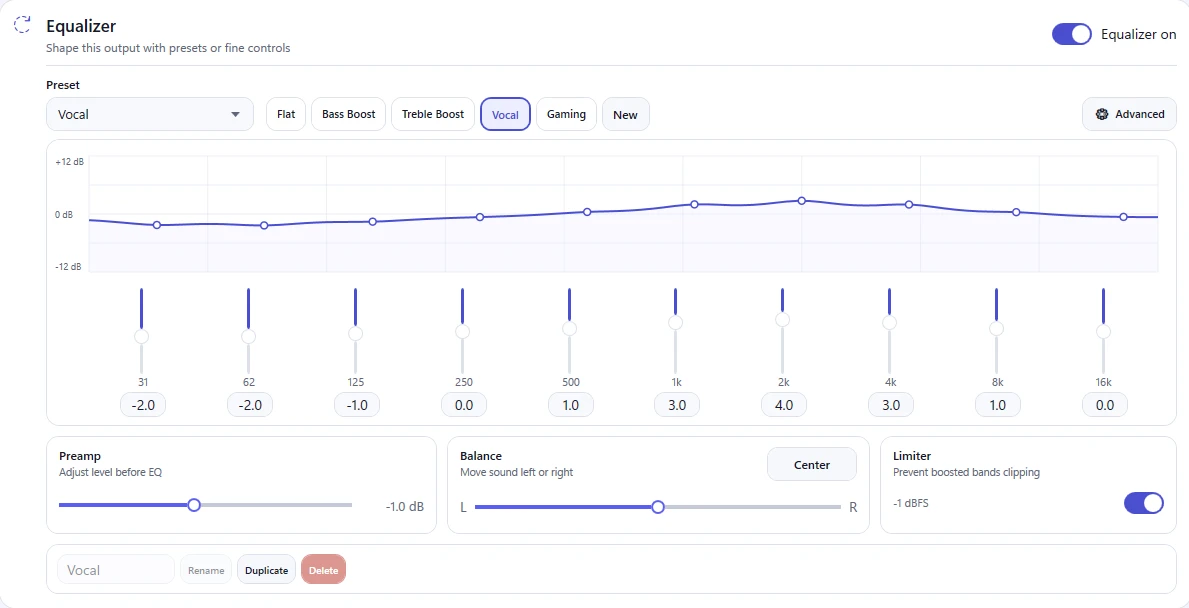
KikuTune includes a ten-band equalizer from 31 Hz to 16 kHz, with a preamp, left and right balance, and a limiter at −1 dBFS that catches boosted bands before they clip. It is part of the free app, with no account required.
Presets that ship with the app cover the common cases, and you can browse presets other owners published for the same headphone model.
Where this does not help
- Some audio paths bypass system processing entirely. Applications using an exclusive-mode or protected output will not be affected by any system equalizer.
- An equalizer changes tone. It cannot add detail the Bluetooth connection did not carry, and it cannot repair the quality drop that happens during calls.