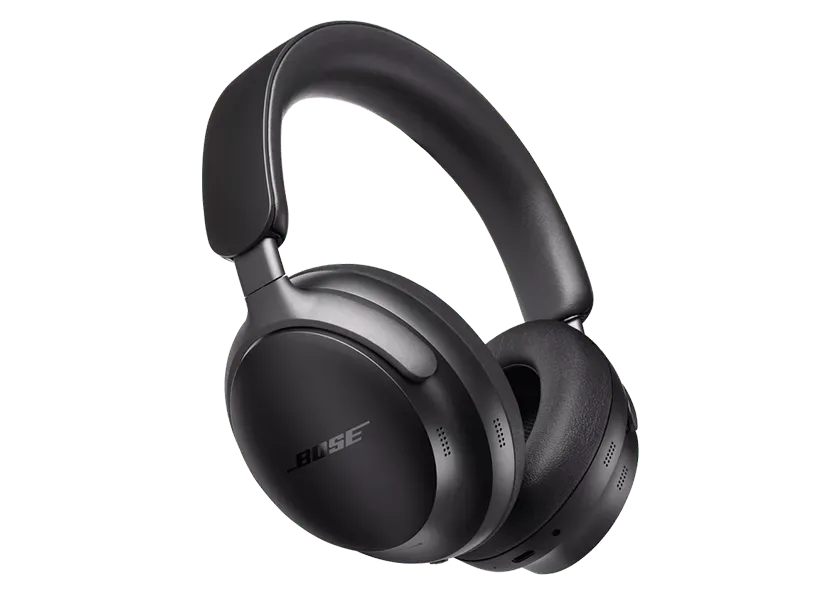
What works on a PC
- Stereo audio and the microphone, through standard Windows Bluetooth
- Battery, as far as the headphones report it to Windows
- A ten-band equalizer applied to the Windows output
- Output switching between headphones, speakers and anything else
- Per-device settings and per-app rules
- Low latency mode for games
What does not carry over
- Switching quiet modes from the PC. Those live in the headphones and in the Bose app on a phone.
- Immersive audio modes, which the headphones and the phone app compute.
- Anything the phone app automates by place or activity.
Noise cancelling does not depend on the PC
The cancelling runs inside the headphones, so it is just as effective on a PC as on a phone. What a PC cannot do is change the mode, because the control is not part of standard Bluetooth.
The buttons on the headphones keep working, which is the fastest way to switch while you are at the desk.
One curve for everything you play
A player with its own equalizer shapes only its own audio, so the sound changes every time you switch windows.
A system-wide equalizer sits on the Windows output, which is why the same curve covers video, games and calls.
KikuTune on Windows
Battery, output switching, a ten-band equalizer, per-device settings and per-app rules are free, with no account. The paid plan adds model correction and the studio signal path.
Questions people ask
- Can KikuTune change the Bose quiet modes?
- No. Those modes are handled by the headphones, so use the button or the phone app. KikuTune adds the equalizer, output switching, per-device settings and the battery Windows reports.
- Do I need an account?
- No. Battery, output switching, the equalizer and profiles all work signed out.
- Will my audio sound thin during calls?
- It will if an app opens the headset microphone, because Windows switches to hands-free mode. Choosing a different microphone in the call app avoids it.