Why Windows does this
When you pair AirPods, Windows registers two endpoints for the same hardware. One is a stereo output, used for music and video. The other is a headset endpoint with a microphone, used for calls.
Only one can be active at a time. If the headset endpoint is selected, or if a previous output is still active, the connection looks perfectly healthy and you still hear nothing.
Check which output is actually active
- 1Click the speaker icon in the taskbar and open the output picker.
- 2Look at what is selected. If it names a headset rather than headphones, switch to the stereo entry.
- 3If your speakers or monitor are selected, switch to the headphones entry.
This resolves it more often than any other step, and it takes about five seconds once you know where to look.
Check whether one app is routed elsewhere
Windows lets individual apps use a different output than the system default, and that setting persists. A browser or game can keep playing to your speakers while everything else moves to your headphones.
- 1Open Settings, then System, then Sound.
- 2Scroll to Volume mixer and expand it.
- 3Check the output assigned to the app that has no sound, and set it to your headphones or to Default.
Reconnect rather than re-pair
Removing the device and pairing again is the common advice and it is usually unnecessary. It also loses any per-device settings you had.
Disconnecting and reconnecting the existing pairing fixes a stale connection without starting over. Try that first, and keep re-pairing as a last resort.
If nothing has helped
Restart the Bluetooth Support Service from the Services console, and set its startup type to Automatic if it is not already.
If audio still fails on every output, the problem is more likely the Bluetooth adapter driver than the headphones. Update it from the manufacturer rather than through Windows Update, which often reports a working driver as current.
Sound in one app but not another
Windows keeps a per-app output assignment, and it survives restarts. An app set to your speakers months ago keeps using them while everything else follows the default.
The same list also holds apps that no longer exist. Resetting it is safe and takes one click.
- 1Open Settings, then System, then Sound.
- 2Scroll to Volume mixer and expand it.
- 3Set the app to Default, or use Reset to clear every custom assignment at once.
Audio that plays but nobody hears
If the meter in the volume mixer moves while the headphones stay silent, the audio is reaching an endpoint that is not the one on your head. That is a routing problem, not a device fault.
If the meter does not move at all, the app itself is muted or paused, and no Bluetooth setting will change that.
How KikuTune helps here
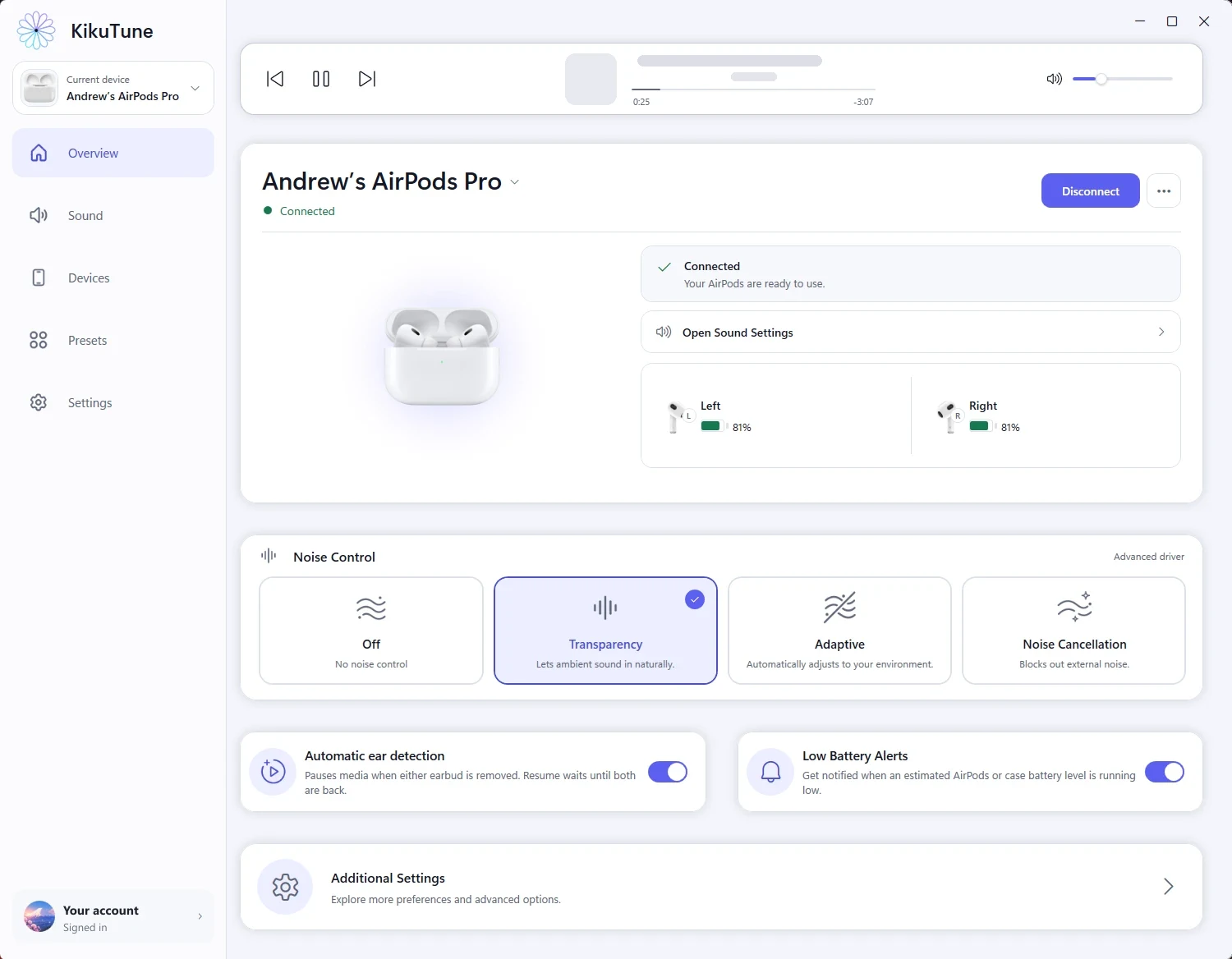
KikuTune shows which device is connected and which output Windows is actually playing through, on one screen, so the mismatch is visible instead of being something you have to go looking for.
Switching output and reconnecting are both one click from that screen. This is part of the free app — no account, and nothing here is behind the paid plan.
Where this does not help
- KikuTune cannot fix a faulty Bluetooth adapter driver, and it does not install drivers.
- If the earbuds fail on another computer or phone as well, this is a hardware or firmware problem and no Windows app will change it.