Pair them
- 1Put both earbuds in the case and open the lid. Leave it open.
- 2Press and hold the button on the back of the case until the light flashes white.
- 3On the PC, open Settings, then Bluetooth & devices, then Add device, and choose Bluetooth.
- 4Pick the earbuds from the list and wait for Windows to say they are connected.
AirPods Max have no case: hold the noise control button until the light flashes white.
If they never appear in the list
- 1Close the lid for ten seconds, open it, and hold the button again until the light flashes white rather than amber.
- 2Charge the case. A nearly empty case often refuses to enter pairing mode.
- 3Remove any old entry for the same earbuds from Bluetooth & devices before trying again.
- 4If the PC has both built-in Bluetooth and a USB dongle, disable the one you are not using in Device Manager.
Windows creates two devices, not one
After pairing you get a stereo output for listening and a headset entry with a microphone for calls. Only one is active at a time, and Windows switches between them on its own.
This is behind most of the trouble people meet next: no sound because the wrong entry is selected, or muffled audio because a call put you on the headset entry.
Switching between a phone and the PC
The automatic handoff between Apple devices does not extend to Windows. Each time you come back from a phone, reconnect from the PC.
The pairing itself survives, so this is a single click rather than pairing again.
Bluetooth is off or missing from Settings
If there is no Bluetooth section in Settings, Windows has no working adapter driver, and pairing cannot start. On a laptop, check that a hardware switch or airplane mode is not holding the radio off.
- 1Open Device Manager and look for a Bluetooth section.
- 2If it is missing or an entry carries a warning icon, install the adapter driver from the PC or adapter manufacturer rather than through Windows Update.
- 3Restart, then try pairing again.
Pairing succeeds, then nothing plays
A fresh pairing does not always become the default output. Windows keeps playing to whatever was selected before, which reads as a failed pairing even though the connection is fine.
Pick the headphones in the output picker in the taskbar once, and Windows remembers them.
How KikuTune helps here
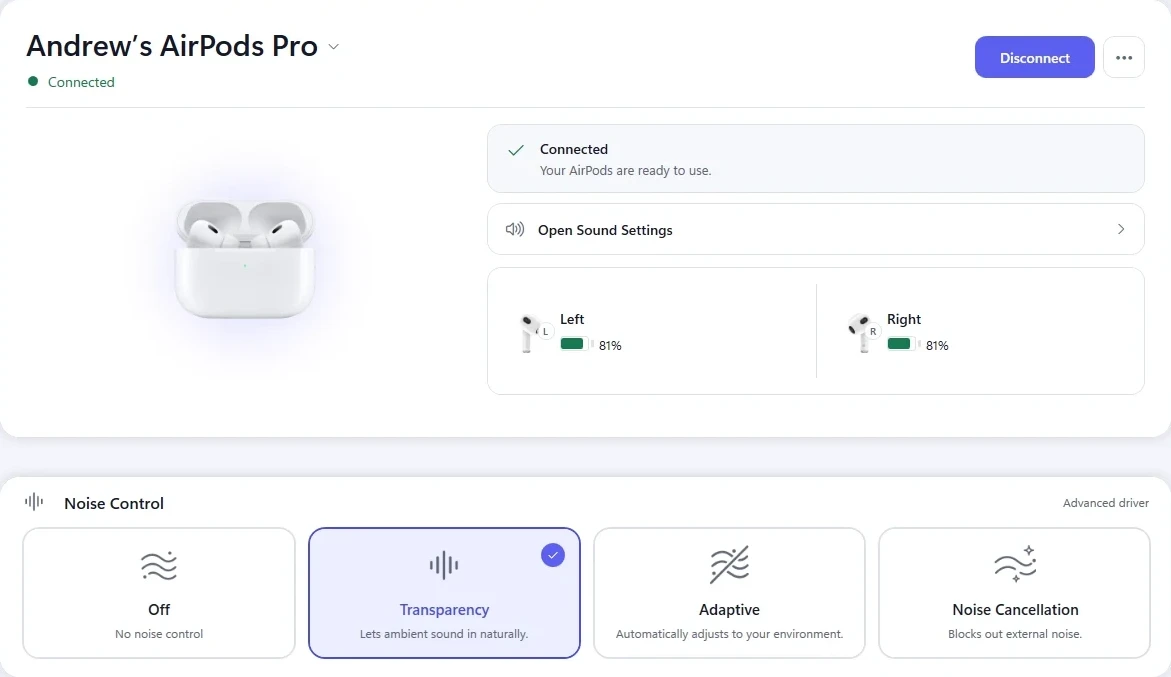
KikuTune connects and reconnects a paired device from one screen, and shows the battery of each bud and the case once it is connected.
If a pairing is broken rather than idle, it can repair it without you working through Device Manager. All of that is in the free app, with no account.
Where this does not help
- KikuTune cannot pair a device that Windows itself cannot see. A dead case battery or a faulty adapter has to be fixed first.
- Features that depend on an Apple device, such as automatic switching between your phone and PC, do not appear on Windows.